Register for Your Online Account
Your online account provides you with secure and easy access to your Municipal Employees’ Pension Plan (MEPP) pension information. The seamless functionality and quick menus will make it easy for you to access and update your account information with a few simple clicks. Benefits include the ability to:
- view your previous member statements;
- update your address and beneficiary information (some legislative restrictions apply); and,
- access to the MEPP Retirement Planner (MORe), your online retirement planning tool.
What you need to register
- your MEPP member number - this can be found on your member statement, welcome letter, or Pension Payment Notice
- your birth date
- your home postal code
- MEPP Pensioners - your most recent net (after tax) monthly pension amount
- an authenticator app installed on your device
If you don't have an authenticator app on your device, see our Choosing an Authenticator App page.
Steps to register
Step 1
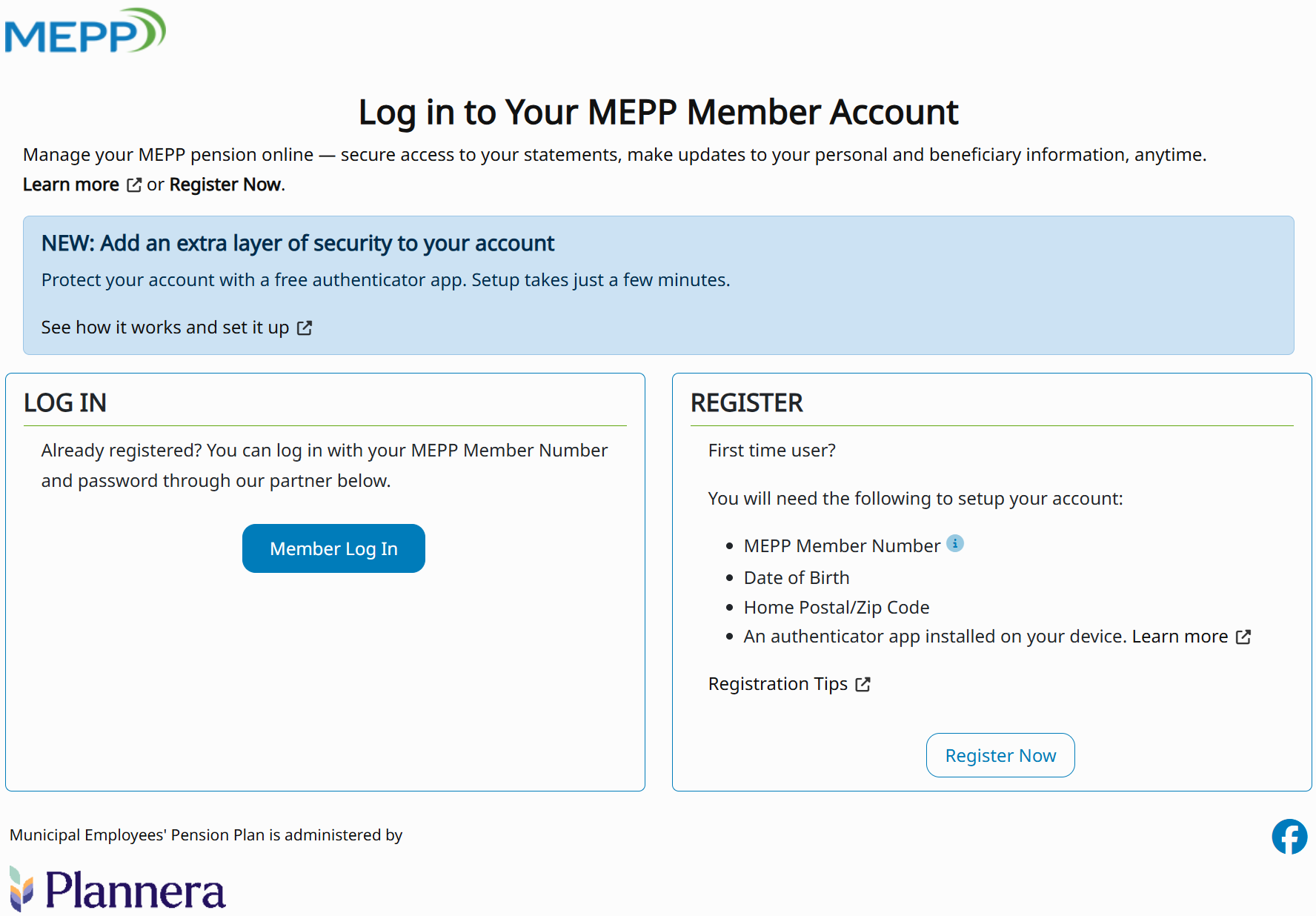
Click on the Member Login button on the the MEPP webpage.

Step 2
Click on the Register Now button.
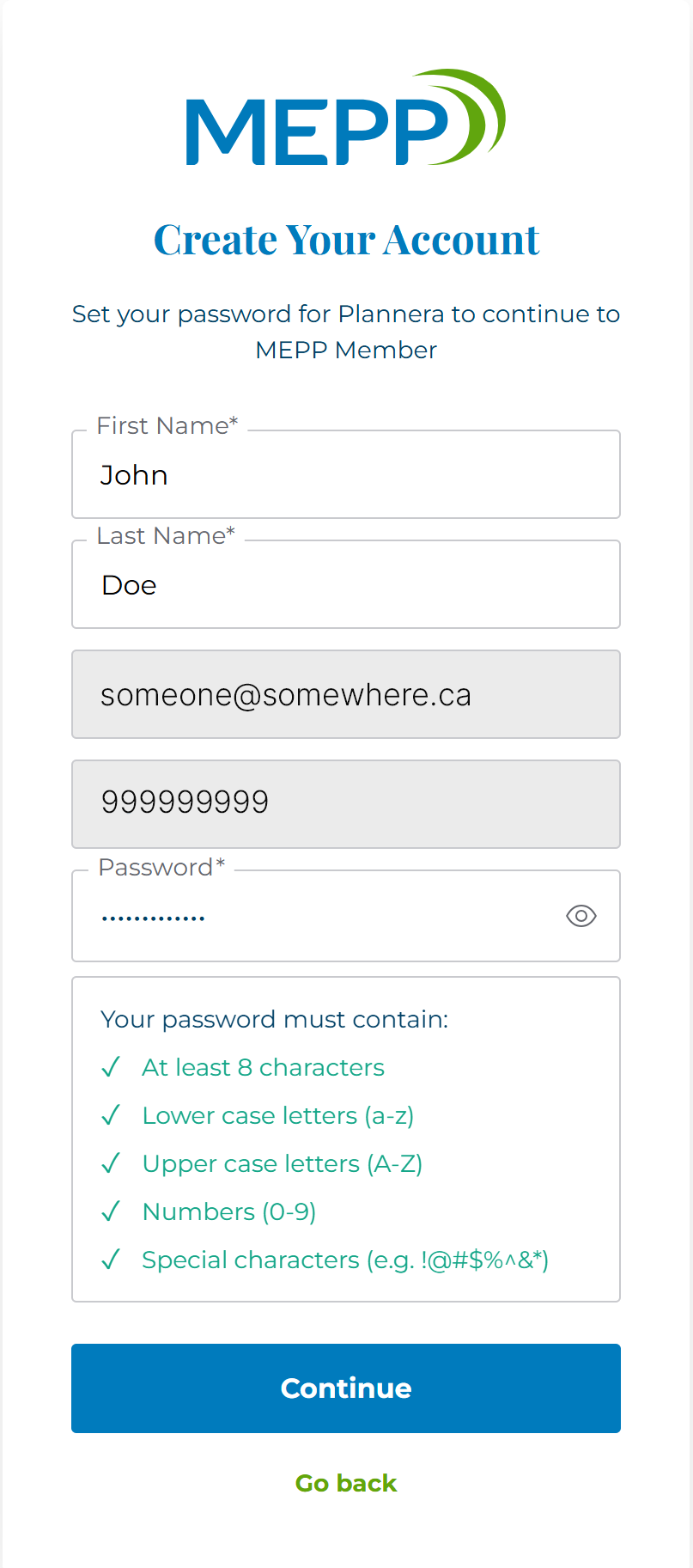
Step 3 - Create Your Account
Enter the requested information and click Continue.
Your MEPP Member Number can be found on your welcome letter, member statement or by contacting MEPP. If you are a pensioner, your Member Number can be found on your Pension Payment Advice or by contacting MEPP.
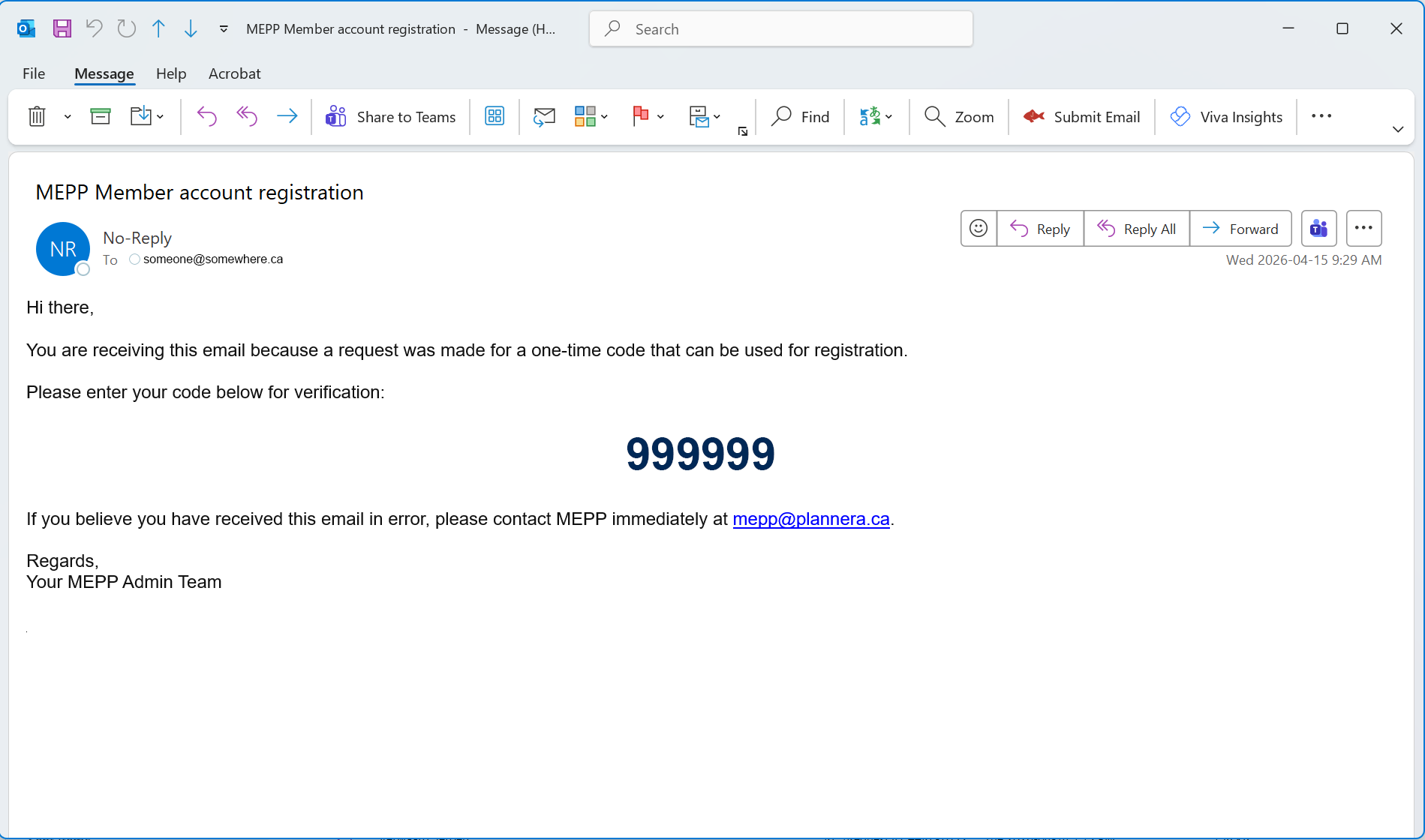
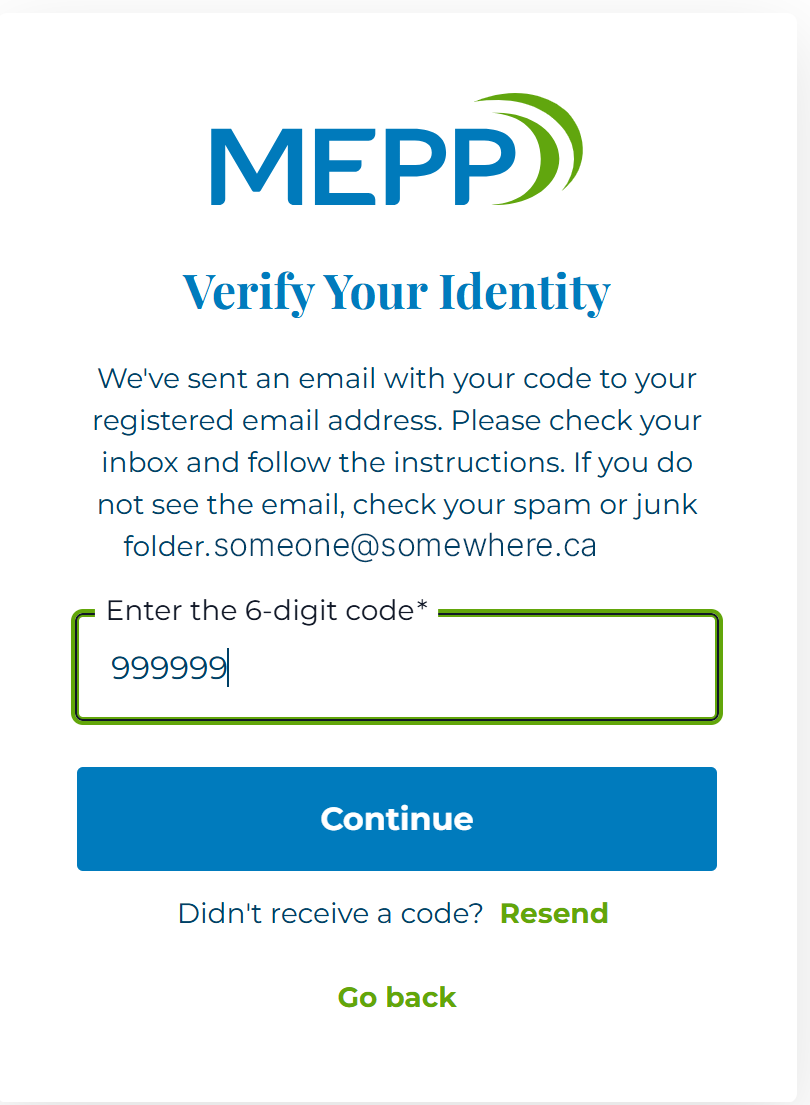
Step 4 - Verify Your Identity
Enter the 6-digit code sent to the email you provided in Step 2. Then click Continue.
Step 5 - Create Your Account Continued
Enter the required information, then click Continue.
Your password must include a minimum of 8 characters which include:
- uppercase (ABC)
- lowercase (abc)
- alphanumeric (a-z and 0-9)
- symbols (!@#$%^&)
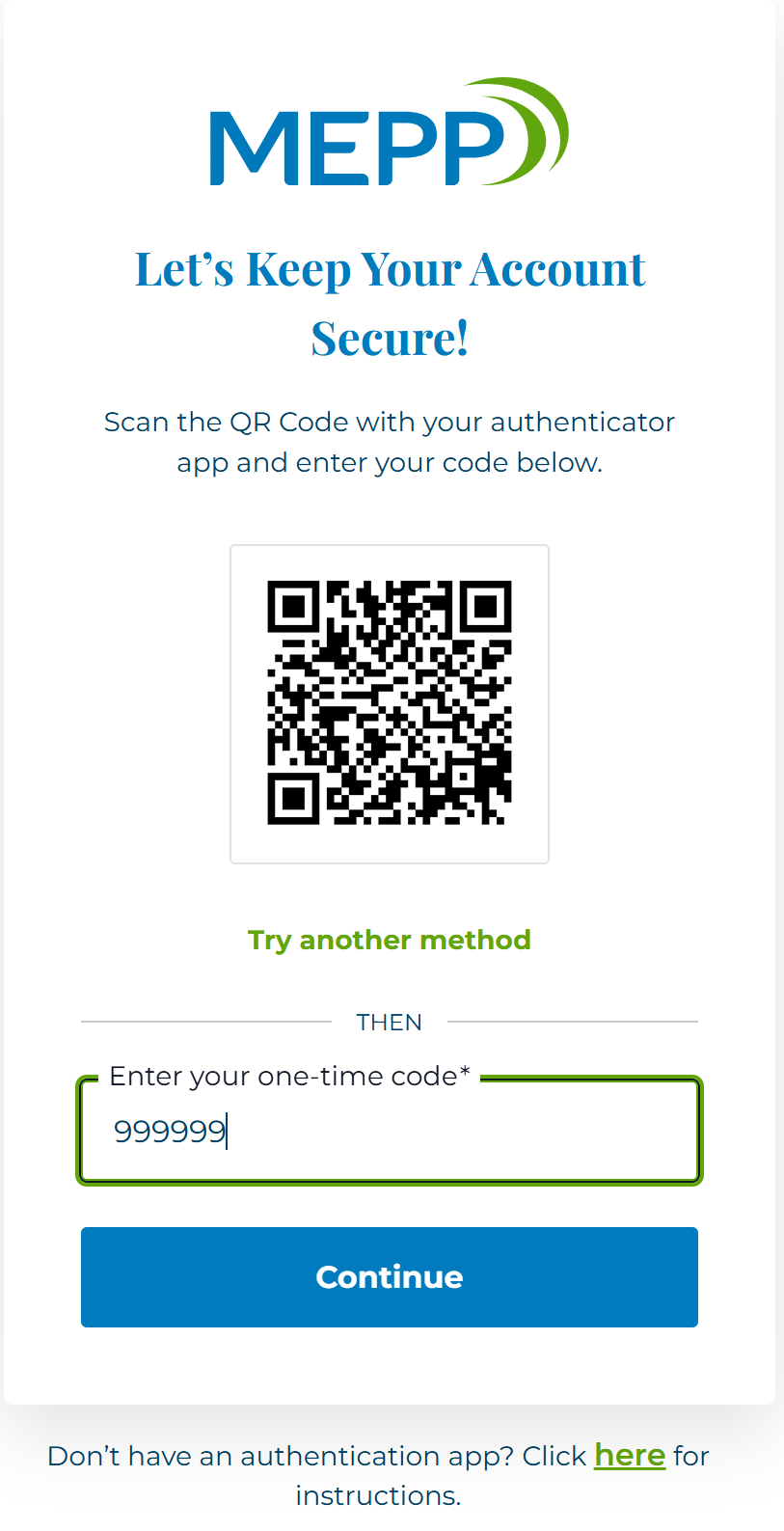
Step 6a - Add Code to Authenticator by Scanning QR Code
This step requires a camera on your device.
Scan the QR code with your authenticator app and enter the 6-digit number, then click Continue.
If your device does no have a camera, click the "Try another method" link and skip to the next step.
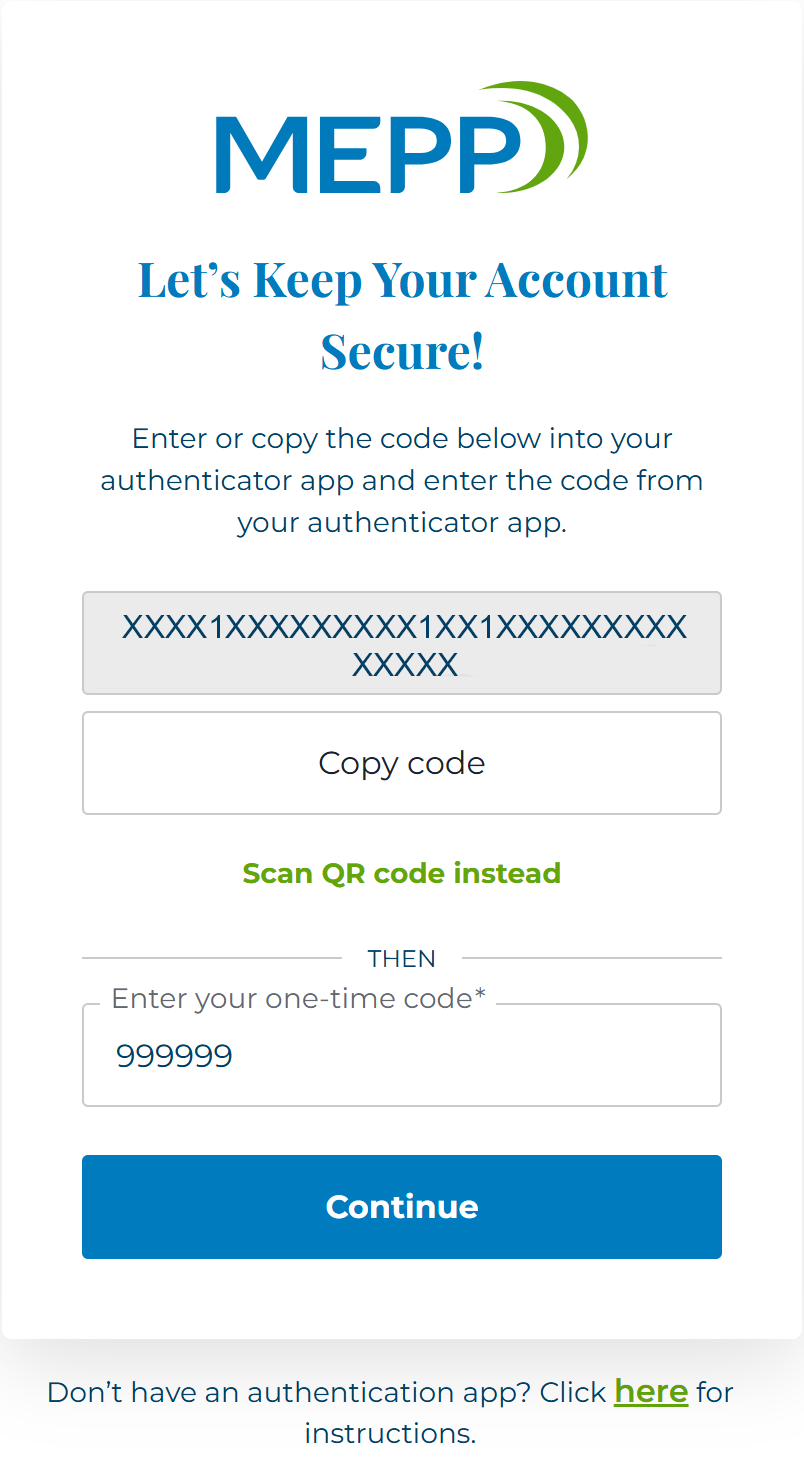
Step 6b - Add Code to Authenticator Manually
If you scanned the QR code successfully, you can skip this step.
Copy or enter the code provided into your authenticator app. Then enter the 6-digit number from your authenticator app, then click Continue.
Success!
If your authenticator app is showing a 6-digit code, then it worked.
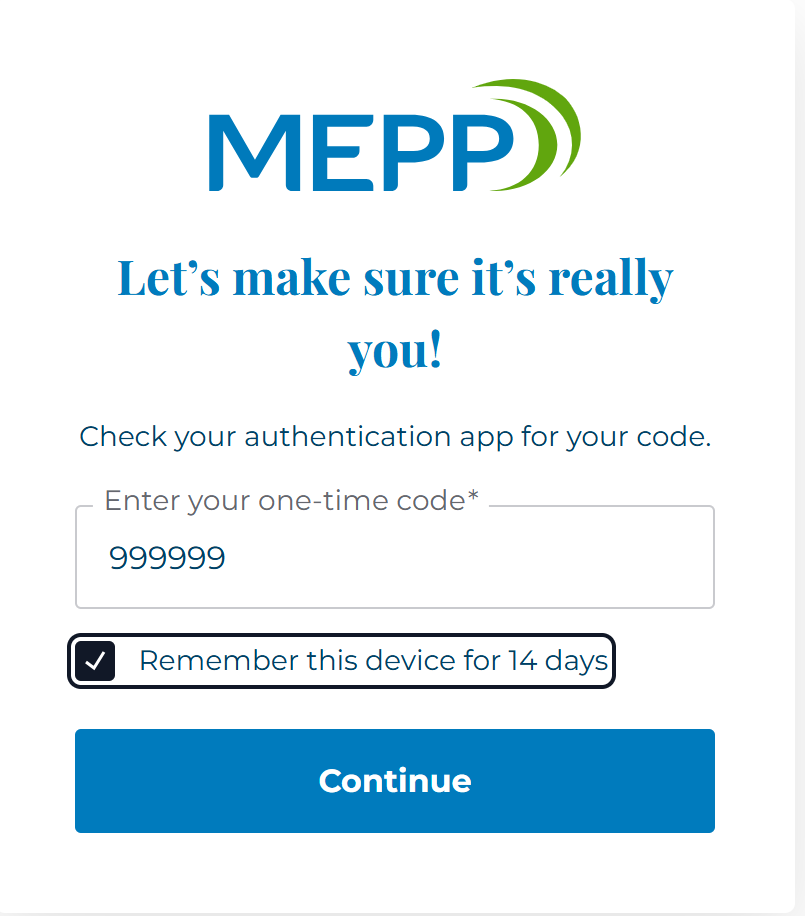
If you are on a device you trust, like your home computer, you can opt to have your device trusted for 14 days and not be asked for a code.
After 14 days, you will be required to enter a 6-digit code when you sign in.